How to Register for WhatsApp Business: A Step-by-Step Guide
Setting up a professional presence on WhatsApp is simpler than most business owners expect, and it is completely free. Whether you are opening an online shop or moving your existing customers off a personal account, registering for WhatsApp Business takes only a few minutes and gives you tools a personal account cannot offer.
This guide walks you through the full registration process step by step, explains what to prepare first, and points out the mistakes that most often trip people up.
What Are The Requirements When Register for WhatsApp Business?
A little preparation makes registration smooth and prevents the delays that come from missing details. Have these ready before you start:
- A phone number for your business. This can be a mobile number, a landline, or a second number on the same phone. The only rule is that it must not already be active on another WhatsApp account, because one number can be linked to only one WhatsApp app at a time.
- Access to that number's SMS or calls. Verification sends a 6-digit code by text or voice call, so the number must be able to receive one during setup.
- Your business details. Have your business name, category, logo, operating hours, address, and website ready to enter, so your profile looks complete from day one.
- A device with the app installed. WhatsApp Business is a free app for Android and iOS, separate from the standard WhatsApp app.
Read more: WhatsApp Business API Guide
How Do You Register for WhatsApp Business?
You register for WhatsApp Business by downloading the free app, verifying your business phone number with a 6-digit code, and completing your business profile. The whole process usually takes under ten minutes. Here is each step in order.
Step 1: Download and Install the App
Get the official WhatsApp Business app from the Google Play Store (Android) or the Apple App Store (iOS). It is free. If you already use standard WhatsApp on the same phone with a different number, you can run both apps side by side without conflict.
Step 2: Register Your Business Phone Number
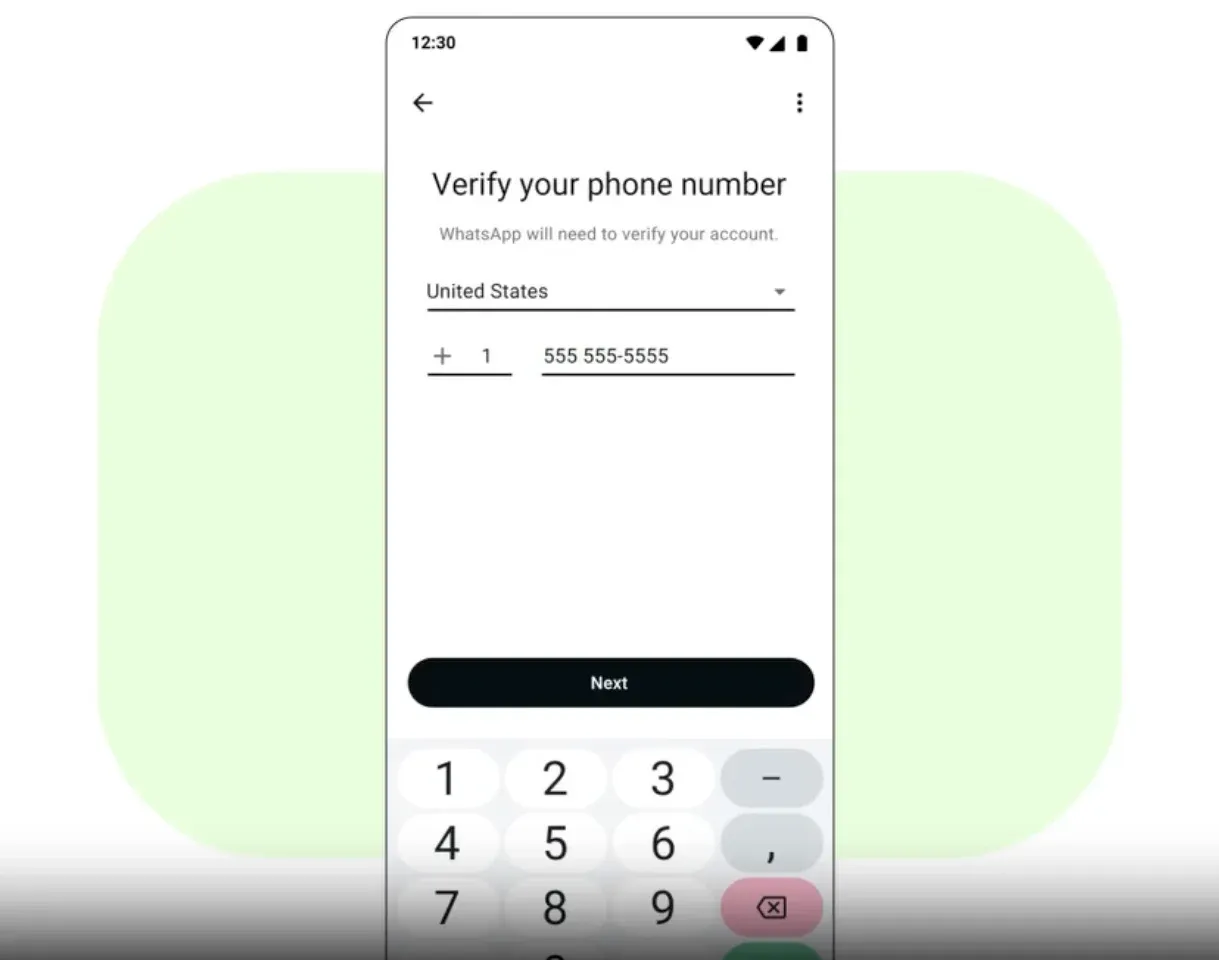
Open the app, agree to the Terms of Service, and enter the phone number you want customers to reach you on. You can use a landline or a separate number here, keeping it distinct from your personal WhatsApp. If the number already has a personal WhatsApp account, the app will offer to migrate that account to WhatsApp Business, which brings your existing chats across.
Step 3: Verify Your Number
WhatsApp sends a 6-digit verification code to the number by SMS or voice call. Enter it to confirm the number is yours. If the SMS does not arrive within a minute, choose the voice-call option instead and the code will be read out to you.
Step 4: Build Your Business Profile
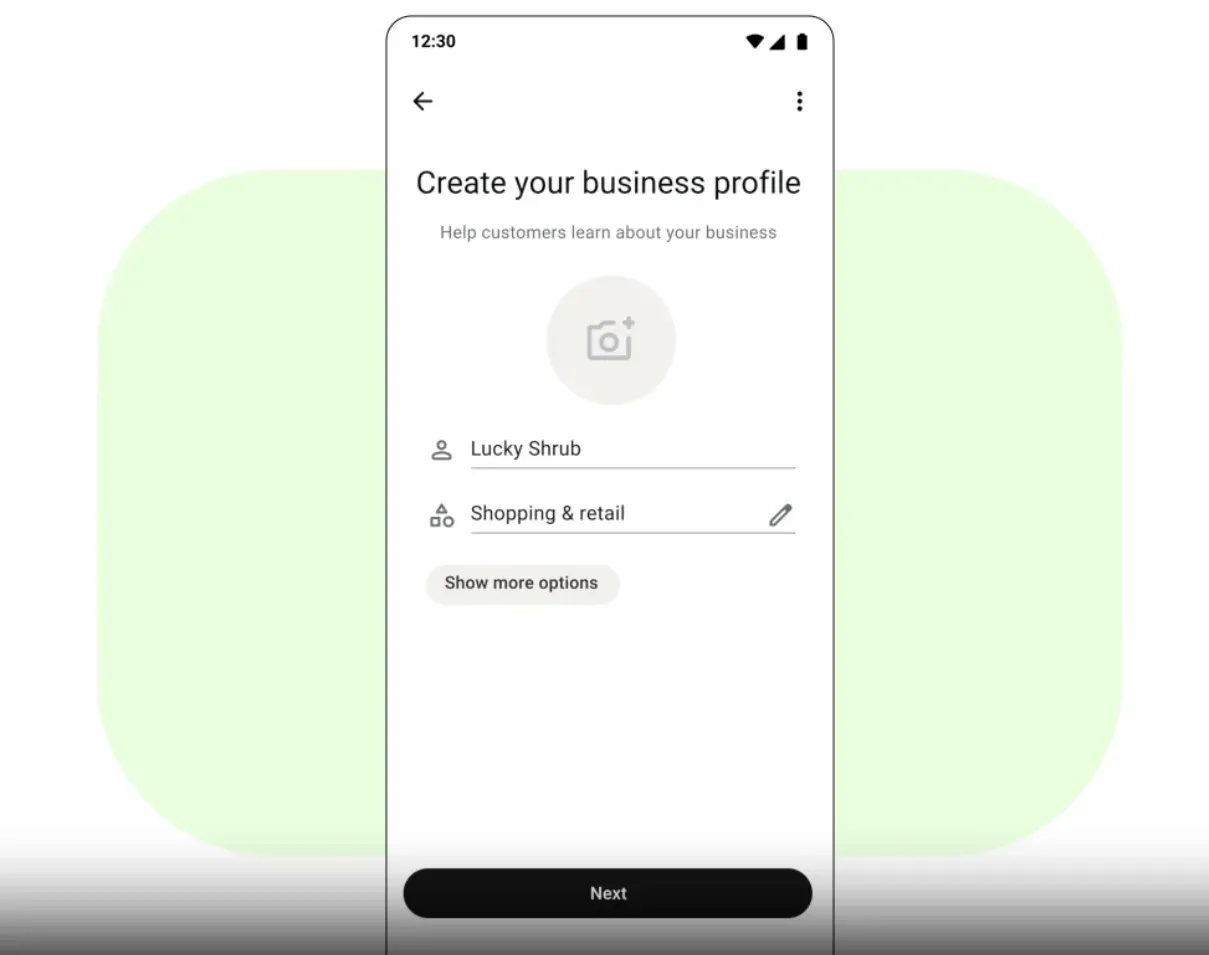
Enter your business name, choose the business category that fits you best, and upload a logo or profile photo. Your business name becomes your display name, so use the real, consistent name customers know you by rather than a nickname or keyword-stuffed title.
Read more: WhatsApp Protocol Numbers
Step 5: Configure Your Business Tools
Go to Settings > Business tools to complete your profile with the details customers look for: address, operating hours, website, email, and a description. This is also where you set up your catalog to show products with prices, and where the automated messages live. A complete profile builds trust and answers common questions before a customer even asks.
How Do You Optimize Your Whatsapp Profile After Registering?
Registering is only the first step. A well-tuned profile turns a basic account into one that actually converts inquiries into sales. Focus on these after setup:
- Fill every field in your profile. An address, hours, and website signal a real, trustworthy business and improve how you appear to customers.
- Set up your catalog. Adding products with clear photos and prices lets customers browse and decide inside the chat, cutting the back-and-forth of re-sending the same information.
- Turn on automated messages. A greeting message welcomes first-time contacts and an away message covers hours you are closed, so no one is met with silence.
- Create quick replies. Save answers to your most common questions and send them with a keyword shortcut to respond faster.
For businesses that quickly outgrow these built-in tools, this is the point where a platform like SaleSmartly becomes useful. Built on the WhatsApp Business API, it adds AI-powered automation that answers customers on its own, going beyond the app's basic greeting and away messages.
Tips and Common Mistakes to Avoid When Creating A Whatsapp Business Profile
A few practical points save you the most common headaches during and after registration:
- Do not reuse a number that is already on WhatsApp. If the number runs a personal account you want to keep separate, register with a different number instead, since one number works on only one app at a time.
- Enter your business name carefully. It becomes your display name, and changing it later can require review. Get it right the first time.
- Back up your chats before migrating. If you are converting a personal account to Business, back up first so no conversation history is lost in the switch.
- Do not leave the profile half-finished. A blank address or missing hours makes a business look inactive. Complete every field before you share the number with customers.
- Plan ahead for growth. The app is built to be managed from a single phone, so if you expect several staff to answer messages or you sell across multiple channels, plan early for the WhatsApp Business API rather than switching under pressure later.
Take Your Whatsapp Business To The Next Level of Automation
The WhatsApp Business app is the right choice for solo owners and small teams, but it has clear boundaries: it runs on one phone, one person answers at a time, and its automation stops at simple greeting, away, and quick-reply messages. Once you need several agents sharing one number, AI that replies automatically, or WhatsApp connected to your other channels in a single inbox, you have reached the app's ceiling.
That next stage runs on the WhatsApp Business API, which platforms manage for you.
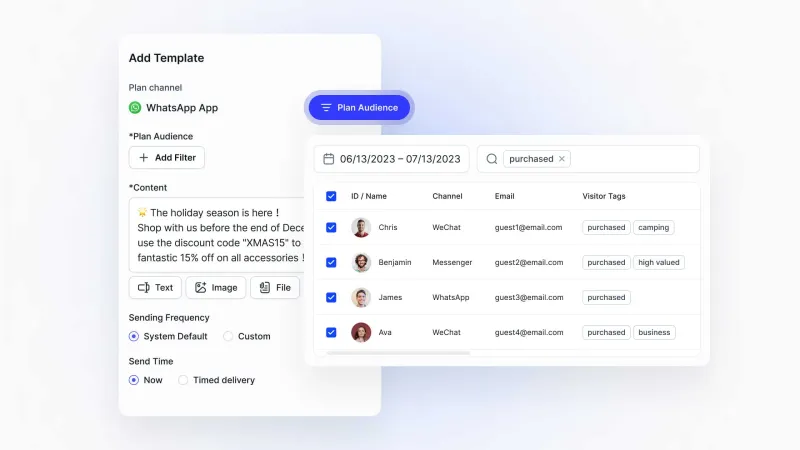
SaleSmartly is one such platform: it connects the API and adds AI chatbots, a shared team inbox, keyword and intent-based auto-replies, and CRM, across WhatsApp and every other channel you use.
Explore SaleSmartly today!
Conclusion
Registering for WhatsApp Business is quick, free, and well worth the few minutes it takes. Download the app, verify your business number, and complete your profile, and you have a professional presence with tools a personal account never offered. Keep your profile complete, turn on automated messages, and revisit your setup as you grow. When your business outgrows the app, the WhatsApp Business API through a platform like SaleSmartly is ready to take you further.
Ready to automate WhatsApp once your account is set up? Try SaleSmartly free.
FAQ
How do I create a WhatsApp Business account?
Download the free WhatsApp Business app from the Play Store or App Store, open it and accept the terms, enter your business phone number, and verify it with the 6-digit code sent by SMS or call. Then add your business name, category, logo, hours, and other details in the business profile to finish.
Can I use my personal number for WhatsApp Business?
Yes, but a single number works on only one WhatsApp app at a time. If you register your personal number for WhatsApp Business, the app migrates that account across. To keep a separate personal WhatsApp, register the Business app with a different number, such as a second SIM or a landline.
Do I need a new SIM for WhatsApp Business?
Not necessarily. You can use your existing number, a landline, or a second number. A new SIM is only needed if you want to keep your current number on personal WhatsApp while running a separate business account, since one number cannot be active on both apps at once.
How long does WhatsApp Business registration take?
The basic registration takes under ten minutes: a few minutes to download and verify, and a few more to complete your profile. Note that this quick setup is different from Meta business verification (the process for higher messaging limits and a verified name), which is a separate step that can take days.
WhatsApp Business vs Regular WhatsApp: What's the Difference?
WhatsApp Business vs regular WhatsApp: see the key differences in profile, automation, labels, and number type, and which one fits your business.
Why Are Chatbots Often Used in Online Customer Service? (2026)
Discover why chatbots are used in online customer service, the key benefits they bring, and how to add one to your support with this practical guide.
