How to Set Up Automatic Replies on WhatsApp: 3 Proven Methods
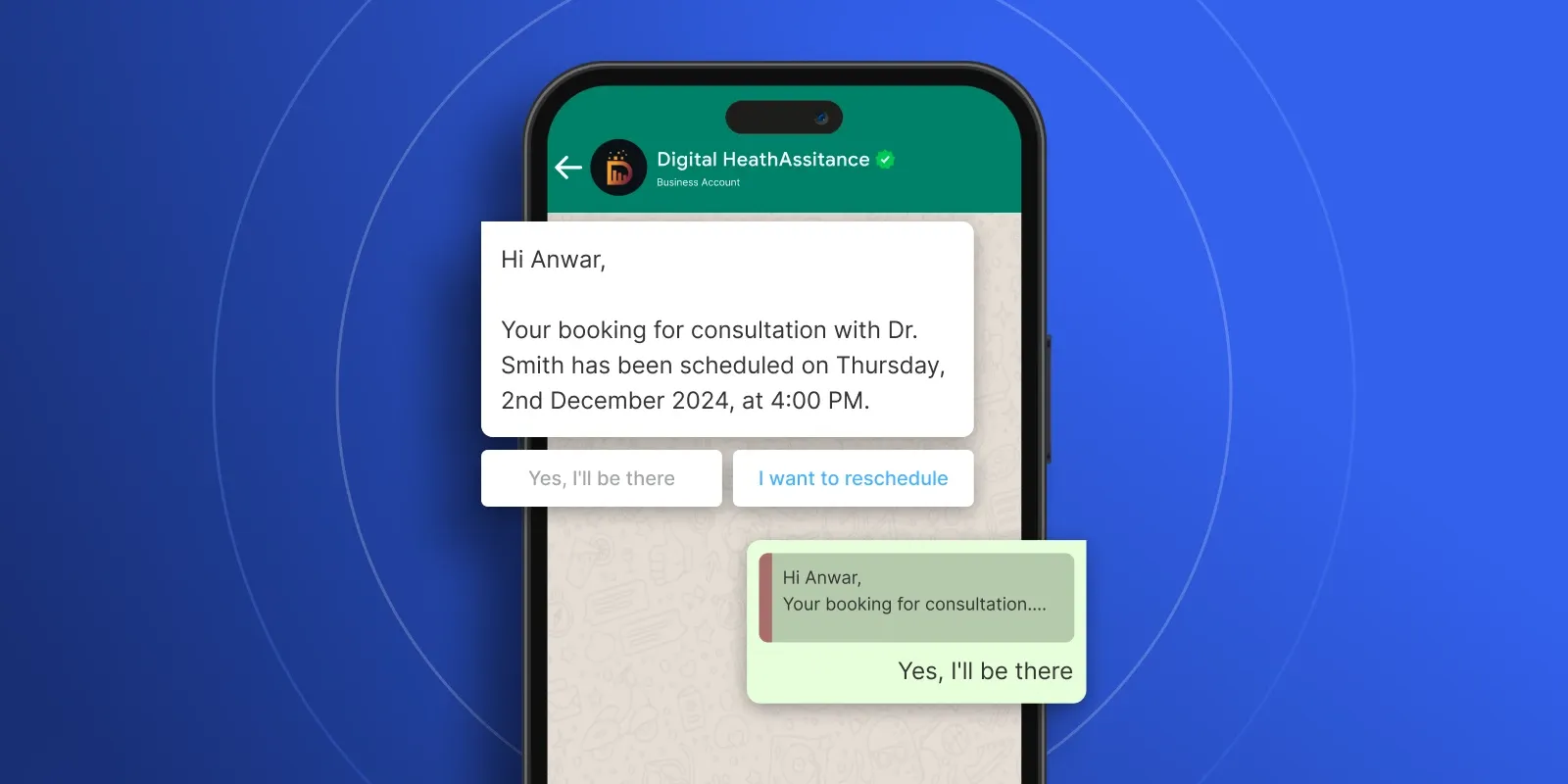
If you run a business on WhatsApp, you already know the problem: messages arrive at midnight, during lunch, and on weekends, and every one you miss is a customer who may not come back. You cannot be online 24 hours a day, but your replies can be. A WhatsApp automatic reply acknowledges every incoming message the moment it arrives, with no agent needed.
This guide covers three proven methods to set one up, two using the free WhatsApp Business app and one using the WhatsApp Business API, each with clear, step-by-step instructions.
Why Should You Set Up Automatic Replies on WhatsApp?
An automatic reply guarantees every message gets an instant response, even when your team is offline. That matters because slow replies cost sales: the longer a customer waits, the more likely they are to leave. This is exactly why WhatsApp customer service has become a core function for businesses in Indonesia rather than an afterthought.
Setting one up gives your business four concrete advantages:
- No message goes unanswered. Every inquiry, day or night, receives an immediate acknowledgement instead of silence.
- Customers know when to expect a reply. A clear away message stating your hours reduces frustration and repeat follow-ups.
- Less repetitive work for your team. Predefined and keyword-triggered replies handle routine questions, freeing agents for conversations that need them.
- A consistent, professional first impression. Every customer receives the same accurate reply from the start.
What Do You Need Before You Start?
Before setting up any automatic reply, make sure you have these ready:
- The WhatsApp Business app (for Methods 1 and 2). Automatic replies are not available on personal WhatsApp. Download WhatsApp Business free from the Play Store or App Store and register your business number.
- A completed business profile. Fill in your name, hours, and category first, because the "outside business hours" schedule option only works once your operating hours are set.
- Your common questions and answers written out. Draft the replies you send most often, such as price, location, and shipping, before you start, so your away messages and quick replies are ready to paste in.
- WhatsApp Business API access (for Method 3 only). For keyword and AI automation, you connect the API through a provider or platform. This is the one method that needs setup beyond the app itself.
How Do You Set Up Automatic Replies on WhatsApp? 3 Methods
There are three ways to set up a WhatsApp automatic reply. The right one depends on how advanced you need it to be, from a simple off-hours message to keyword-triggered AI replies.
Method 1 — WhatsApp Business App (Away Messages)
The away message is a built-in feature of the free WhatsApp Business app that replies automatically when you are unavailable. It is the fastest way to start, works on Android and iOS, and takes about five minutes.
Step-by-step guide:
- Open the app. In WhatsApp Business, tap the three vertical dots (Android) or the Settings tab (iOS).
- Go to Business Tools. Open Business tools > Away message.
- Enable it. Toggle Send away message on.
- Write your message. Tap the message box, enter your reply, and tap OK.
- Set the schedule. Tap Schedule and choose Always send, Custom schedule (specific dates and times), or Outside of business hours (requires business hours set in your profile).
- Choose recipients. Tap Recipients and select Everyone, Everyone not in address book, Everyone except…, or Only send to….
- Save. Tap Save in the top right.
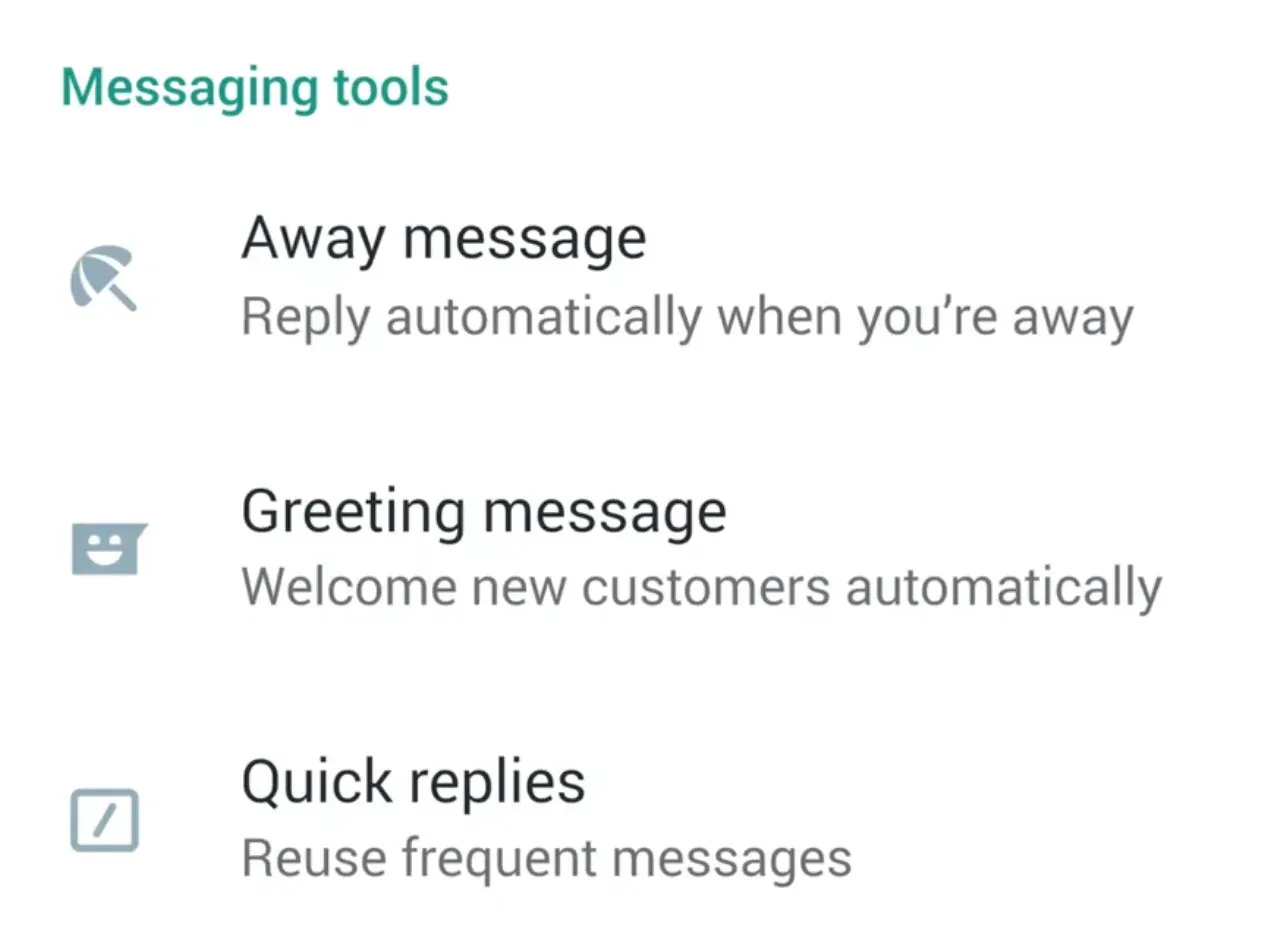
The away message has one limitation worth knowing: it only sends while your phone has an active internet connection, and it works in one-to-one chats, not groups. If you need replies that send even when your phone is off, Method 3 solves that.
Read more: What Is WhatsApp Customer Service and Why It Matters for Businesses in Indonesia
Method 2 — Quick Replies (One-Click Replies)
Quick replies let you save full messages and trigger them with a keyword shortcut, so you answer common questions in one tap during a live chat. The difference from an away message is that a quick reply is sent by an agent, not on its own, so it speeds up your team rather than replacing it. WhatsApp's official guide on how to use quick replies details every option.
Step-by-step guide:
- Go to Business tools > Quick replies.
- Tap the + (or Add) button.
- Enter the Message (the full text to send) and the Shortcut (a keyword).
- Tap Save.
- In any chat, type **/** followed by your shortcut to load and send the message instantly.
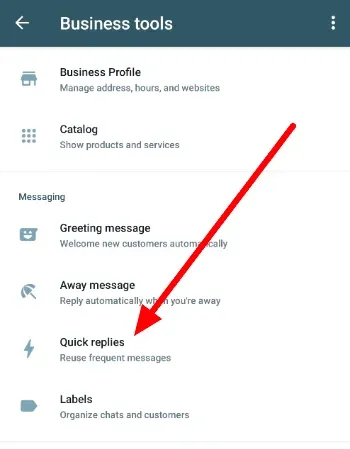
Quick replies are capped at 50 shortcuts and have no conditional logic, so they still depend on an agent being online to send them. To make the same keyword fire a reply automatically, with no agent present, you connect WhatsApp to an automation platform, which is Method 3.
Method 3 — Advanced Automation (Chatbots & Keyword Replies)
When you need replies triggered by specific words, such as sending your price list the moment someone types "price," you connect the WhatsApp Business API to an automation platform. This is the level where automatic replies become a genuine 24/7 system: they run even when your phone is off, can include media and buttons, and can pass complex cases to a human.
Step-by-step guide:
- Get WhatsApp Business API access through an official provider or automation platform.
- Connect your WhatsApp account to the platform.
- Define your triggers, the keywords or customer intents that fire each reply, such as "price," "hours," or "shipping."
- Write the responses, adding media, buttons, or links, plus a fallback message for when the system is unsure.
- Set handover rules so the chat moves to a human agent when needed.
- Go live and refine the rules based on real conversations.
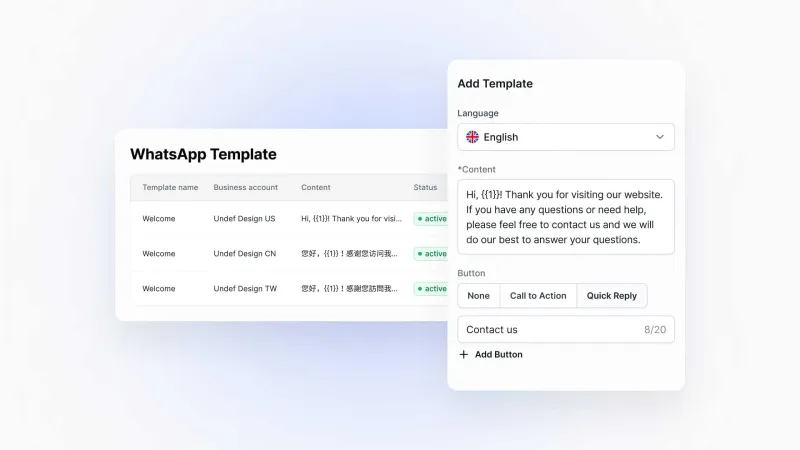
The platforms that do this range from rule-based tools like WANotifier and Brevo, which are enough if you only need simple keyword replies, to full AI chatbot platforms for businesses that want more.
As a concrete example of the AI end, SaleSmartly connects the WhatsApp Business API and runs keyword and AI-based auto-replies on top of it, so a customer who types "price" gets your price list automatically without an agent.
Because it also unifies Instagram, TikTok, and other channels in one inbox, the same automation you build for WhatsApp can answer customers wherever they message you. Which one fits depends on your needs: for basic keyword replies a rule-based tool is enough, while AI platforms make sense once you handle real volume across several channels.
Read more: WhatsApp Business API Guide
Tips and Common Mistakes to Avoid
A few practical pointers make the difference between an automatic reply that helps and one that annoys customers:
- Keep the away message short and clear. State when you will reply and, if possible, what to do meanwhile. One or two lines is enough; a long message gets ignored.
- Always set a schedule, not "always send." Leaving the away message on around the clock means customers get an away notice even during business hours, which looks careless. Tie it to your actual hours.
- Write quick-reply shortcuts you will actually remember. Short, logical keywords like /price or /hours are faster than clever ones you have to look up mid-chat.
- Do not rely on the free app when your phone is off. Away messages need an active connection, so if your phone dies or loses signal, replies stop. For always-on coverage you need the API.
- Review your replies every few weeks. Prices, hours, and promotions change. An automatic reply quoting last month's price does more harm than no reply at all.
- Do not over-automate. Not every message should get a bot reply. Make sure there is always a clear path to reach a human, or you risk frustrating customers with genuine problems.
The Next Step for Growing Businesses on WhatsApp
Methods 1 and 2 are the right starting point, and for a small shop handling a few chats a day they may be all you ever need. The free app runs out when message volume grows, when more than one person answers customers, or when you sell on more than one channel at once.
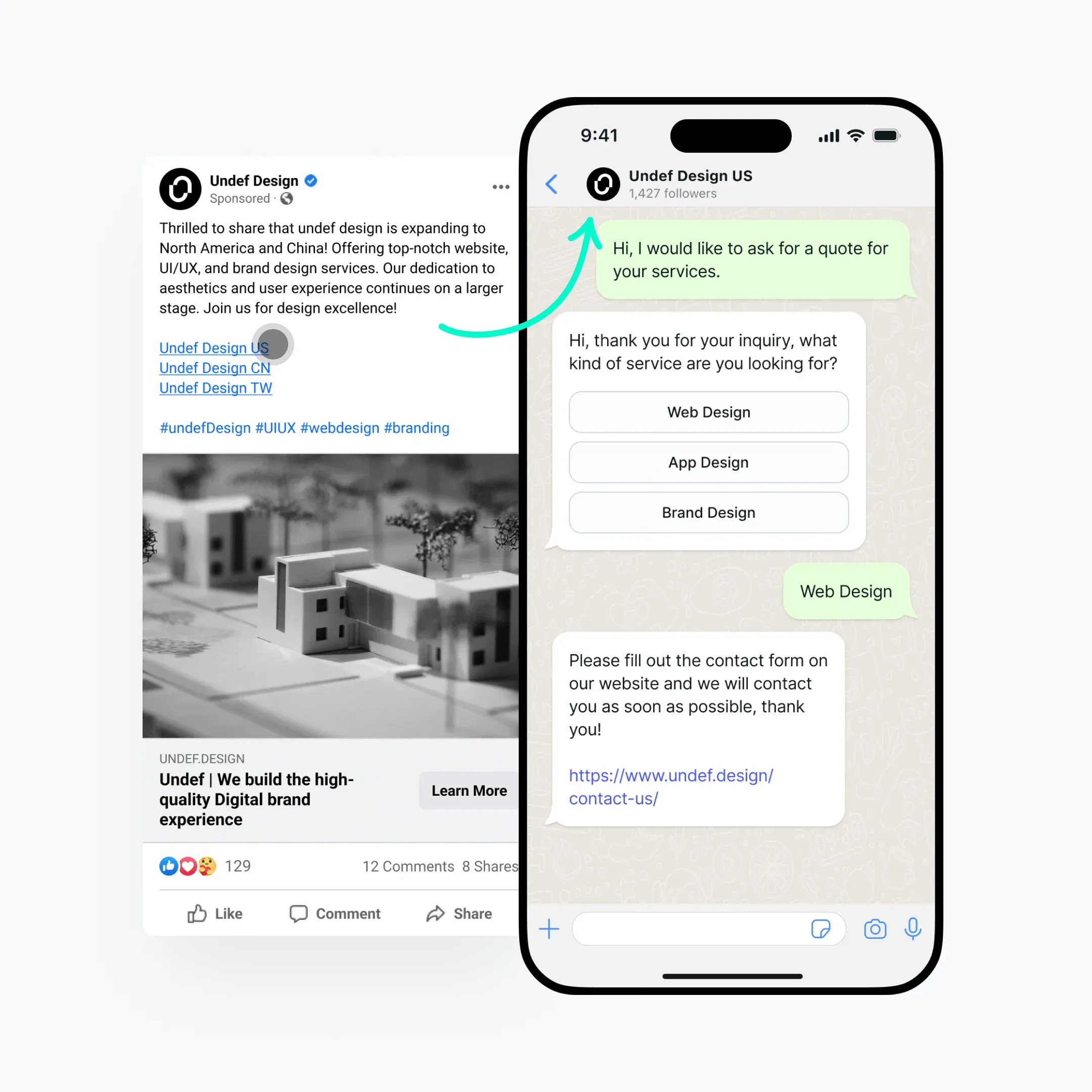
That is the point where a platform built on the WhatsApp Business API earns its place. These platforms connect your WhatsApp account and add automation that the free app cannot do on its own:
- AI and keyword-based auto-replies that answer customers automatically, with no agent required.
- Fallback messages so a conversation never goes silent when the bot is unsure.
- No-code automation rules to decide when AI, keyword replies, and human agents each take over.
- Choice of AI model — connect GPTBots, OpenAI Assistants, ChatGPT, or DeepSeek depending on your needs.
- Real-time translation for cross-border customers in their own language.
- One inbox across channels — WhatsApp, Instagram, TikTok, LINE, and more — so the same automation covers every app your customers use.
For a growing SME, this typically looks like: a bot that handles order status and FAQs around the clock, a shared inbox where your team picks up anything complex, and one dashboard showing every channel at once. No extra headcount, no missed messages, no switching between apps.
If that sounds like where your business is heading, SaleSmartly covers all of the above — free plan included, no per-agent fees. Start for free and test it on your own conversations.
Conclusion
Setting up a WhatsApp automatic reply is straightforward, and the best method depends on what you need. Away messages cover off-hours acknowledgement, quick replies speed up live chats, and chatbot automation through the WhatsApp Business API delivers keyword-triggered replies around the clock.
Start with the free built-in tools, and when message volume or extra channels outgrow them, a platform like SaleSmartly lets you run every automatic reply from one place.
For teams selling abroad, pairing automation with real-time WhatsApp translation removes the last barrier to fast, consistent replies in any language.
FAQ
Can regular WhatsApp reply automatically?
No. The standard personal WhatsApp app has no built-in automatic replies. To send them, switch to the free WhatsApp Business app for away messages and greeting messages, or connect the WhatsApp Business API to an automation platform like SaleSmartly for keyword and AI-based replies.
How do I schedule automatic WhatsApp messages?
In the WhatsApp Business app, open Business tools > Away message, enable it, write your message, then tap Schedule. Choose Custom schedule to set exact dates and times, or Outside of business hours to send only when you are closed, which requires business hours set in your profile.
How do I use a WhatsApp auto responder?
Use the away message for automatic off-hours replies and quick replies for one-click answers during chats. For responses that trigger by keyword without an agent, connect the WhatsApp Business API to a platform such as SaleSmartly and set your trigger rules there.
How can I reply to WhatsApp without opening the app?
Automatic replies handle it. Away messages send on their own while the feature is on, and through the WhatsApp Business API on a platform like SaleSmartly, replies send 24/7 even when your phone is off, because the automation runs in the cloud rather than on your device.
Why is my WhatsApp Business away message not sending?
The most common reasons are that your phone has no internet connection, the schedule is set to hours when you are marked as available, or the recipient filter excludes that contact. Away messages also send only once per contact within a set period, so a returning customer will not get it again immediately. Check your connection, schedule, and recipient settings first.
Best AI WhatsApp Chatbot in Indonesia: Top 10 Platforms Compared (2026)
Compare the 10 best AI WhatsApp chatbot platforms in Indonesia for 2026 — features, best use, and pricing — to choose the right fit for your business.
WhatsApp Business vs Regular WhatsApp: What's the Difference?
WhatsApp Business vs regular WhatsApp: see the key differences in profile, automation, labels, and number type, and which one fits your business.
